
candidapi:postinstallinstructions
 Post Installation Instructions
- Configure Candid Credentials
- Go to Setup and search for Named Credentials
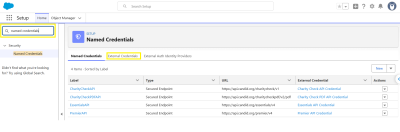
- Open the External Credential for the API desired
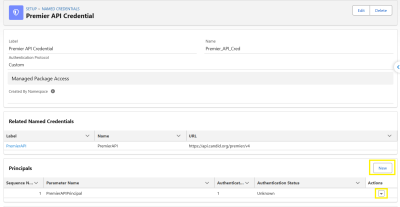
- Create a new Principal or edit the existing
- Premier API should be PremierAPIPrincipal, Charity Check API should be CharityCheckAPIPrincipal, Charity Check PDF API should be CharityCheckPDFAPI, Essentials API should be EssentialAPIPrincipal.
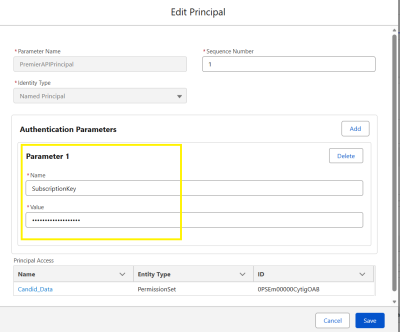
- Enter the Subscription Key with the license keys from Candid.
- Update Candid API Setting in Custom Metadata
- Click Manage Records
- Edit each record to update Active for APIs that have been purchased and will be utilized
- Assign Permission Set to desired Users
- The Candid Charity Search permission set should be assigned to users that should have access to search for Charities and create new Accounts.
- The Candid Data permission set should be assigned to users that will perform Candid charity checks.
- Add Visual Indicators on Account (Optional)
- We recommend adding some visual indicators on the Organization Account Lightning Record Page to clearly and visually identify the Candid Charity Status of an Organization.
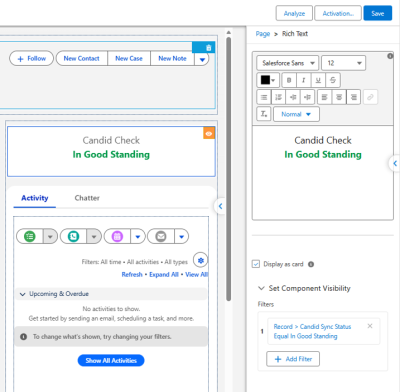
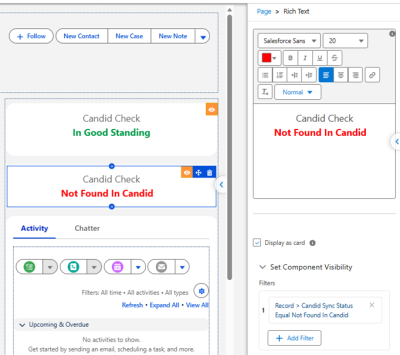
- Add Rich Text components on the screen for each of the desired indicators.
- In Good Standing
- Recommend text is Green
- Set Component Visibility to Record → Candid Sync Status Equal In Good Standing
- Not Found in Candid
- Recommend text is Red
- Set Component Visibility to Record → Candid Sync Status Equal Not Found in Candid
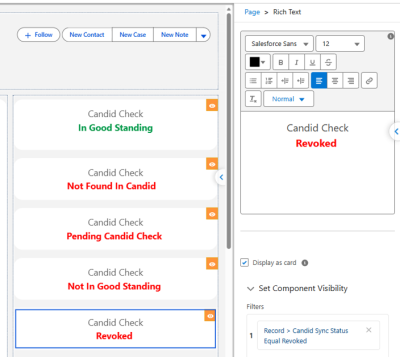
- Pending Candid Check
- Recommend text is Red or Yellow
- Set Component Visibility to Record → Candid Sync Status Equal Pending Candid Check
- Not In Good Standing
- Recommend text is Red
- Set Component Visibility to Record → Candid Sync Status Equal Not In Good Standing
- Status Revoked
- Recommend text is Red
- Set Component Visibility to Record → Candid Sync Status Equal Revoked


candidapi/postinstallinstructions.txt · Last modified: by steve.paydon