
AP Automation and AI Capture
Overview
This document is meant to give users an overview of how to use the AP Automation and AI Capture features of Fund 360 and Accounting Seed.
AP Automation and AI Capture allows invoices to be uploaded and automatically read by the system to create Accounts Payable records. Users review the captured information before posting to ensure accuracy.
Email Invoices to Salesforce
What This Process Does
- Invoice is uploaded or received
- AI reads vendor and amount details
- A draft payable record is created
- A user reviews and posts it
An email can be sent to Salesforce with the invoice PDF attached to the email.
A more user-friendly email address can be used now during testing and/or eventually within the production environment by setting up a “vanity” email with your email administrator. See here for further details: https://support.accountingseed.com/hc/en-us/articles/24947031621651-Email-to-Payable#h_01JBM17A30D9ZHVJM83983ECW7
Payables Created from Email
After emails with invoices have been sent to Salesforce, users can navigate to Payables. New payable records will be created when emails with invoices are received. Select the list view called “Draft” to see the newly created Payables.
View/open one of the payable records by clicking on the Payable Name link “AP-0XXXX”.
The record will be mostly blank at this time. The AI Capture feature will be used to populate much of its details.
AI Capture
Within a Payable record, the Details subtab contains a section labeled “Related Documents”. Scroll down on the payable record page to locate this section.
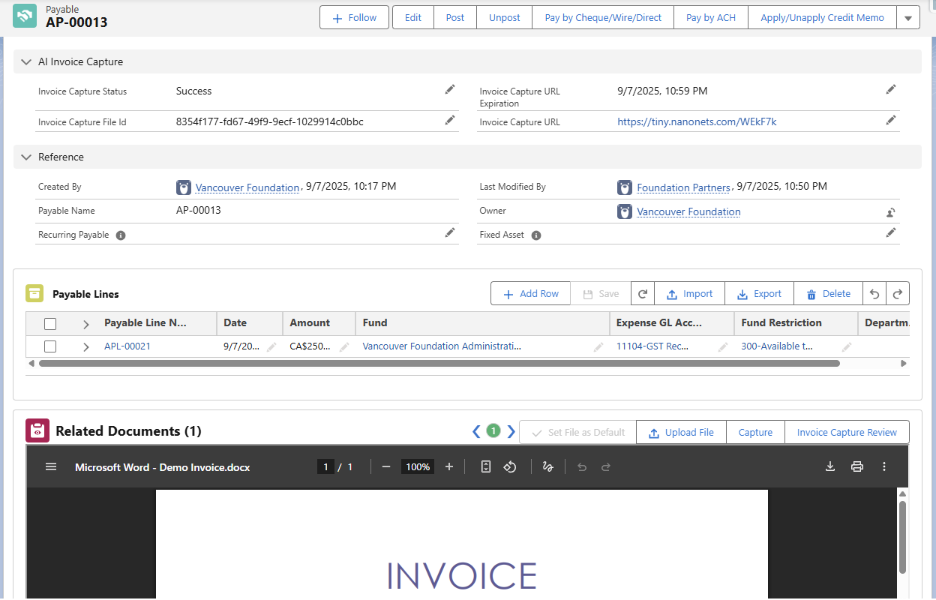
Within the Related Documents section, click the “Capture” button to initiate the AI Capture feature. A prompt will appear warning that proceeding will overwrite and delete any information already defined within the payable record.
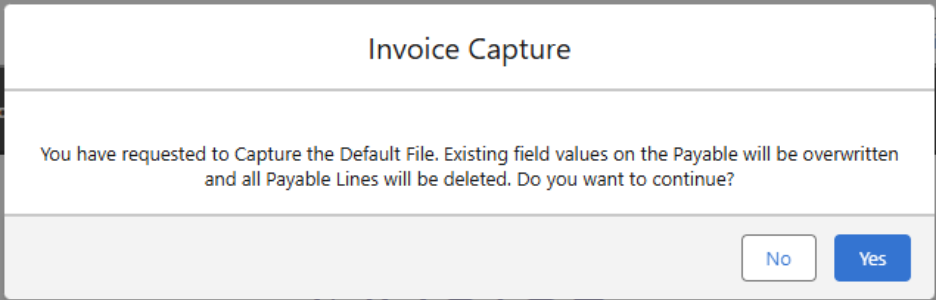
The first time a payable is being reviewed it is okay to accept this prompt. After a payable has been “captured” you may not want to capture a second time.
When “Capture” is clicked the “Invoice Capture Review” button will become disabled. After a moment or two it will become enabled again. When enabled, click “Invoice Capture Review”.
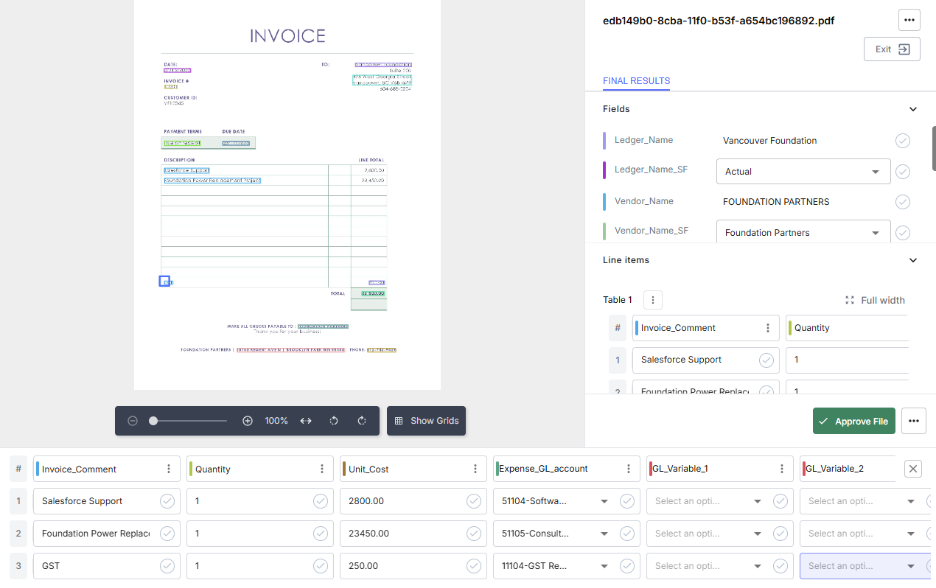
You will be taken to another browser tab in which the AI Capture results can be reviewed.
Invoice Capture Review
Please refer to the following link to Accounting Seed documentation regarding Invoice Capture Review instructions:
https://support.accountingseed.com/hc/en-us/articles/39080106290707-AI-Invoice-Capture#CapIn
Submit Payable for Approval
After completing the Invoice Capture Review, the Payable will be updated based on the capture mapping and training. An additional review of the payable information should occur to ensure all details have been captured properly. Adjustments can be made to the Payable as needed.
When payable information is accurate and complete, it can be submitted for approval by clicking the Send for Approval button in the upper right-hand corner of the page. This will update the payable to “In Process” and inform the accountant related to the payable that a payable is ready for approval.
Approval and Posting
Once the payable is ready for Approval, the accountant will review the Payable. If the Payable is approved, the accountant will click the “Approve Payable” button at the top right of the page. The user will then click the “Post” button in the upper right to post the Payable to the GL.
Posting the payable updates accounting and creates the expense/disbursement transaction.
Initiate Payments
A Senior Finance Manager will have the ability to Pay by Cheque/Wire/Direct or Pay by ACH. This can be done on the Payables list view labelled “Ready for Payment via ACH”, “Ready for Payment via Cheque”, or “Ready for Payment via Direct/Wire”. Once on the desired list view the Senior Finance Manager will select all the payables they wish to pay at this time and then click the appropriate “Pay by..” button at the top of the page.
Teh Senior Finance Manager will be given a summary of the payments that are about to be made and prompted to finalize the payment by pressing pay.
Common Questions
Does the AI automatically pay invoices? No — invoices must be reviewed and posted by a user.
Can I edit captured values? Yes — the AI populates fields but users remain responsible for accuracy.
When does accounting update? Only when the payable is posted.